

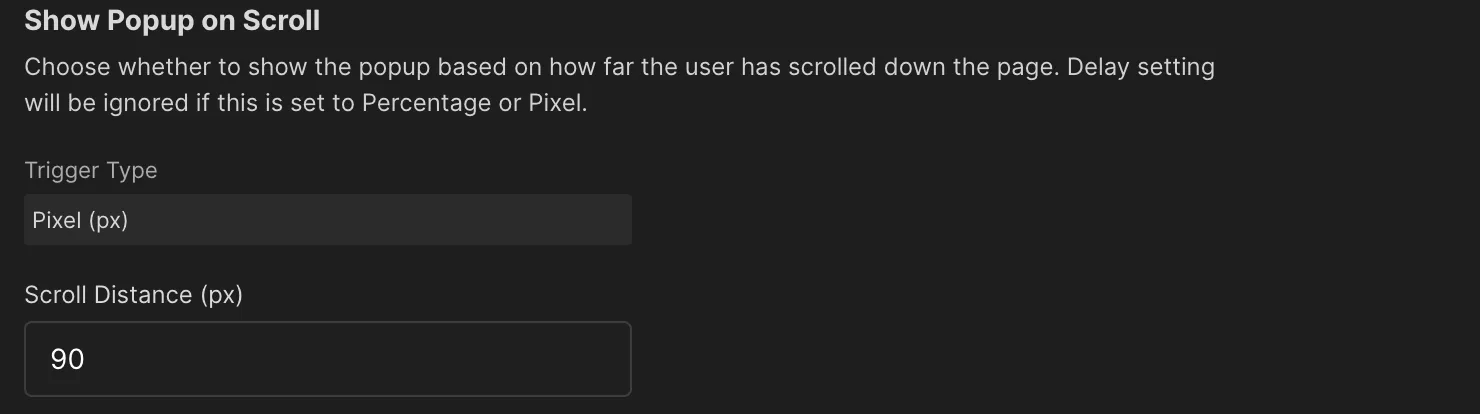
The Show Popup on Scroll setting allows you to display the cookie consent popup only after a visitor has scrolled down the page. This option gives you more flexibility in how and when users are prompted, helping reduce disruption and aligning the popup with visitor engagement.
⚠️ Note: If this feature is enabled, the Popup Showing Delay setting will be ignored.
How to Configure
- Go to the Cookie Consent App Settings tab in your Webflow project.
- Locate the Show Popup on Scroll option.
- Select a Trigger Type:
- Percentage → Trigger the popup once the user has scrolled down a specific percentage of the page.
- Pixel → Trigger the popup after the user has scrolled a set number of pixels.
- Enter a value in the input field based on your selected trigger type:
- Scroll Percentage (%) → e.g.,
30to show the popup after the user scrolls 30% of the page. - Scroll Distance (px) → e.g.,
500to show the popup after the user scrolls 500 pixels.
- Scroll Percentage (%) → e.g.,
- Save your changes.
Best Practices
- Percentage Trigger:
Useful for long-form content or landing pages, ensuring the popup appears after a visitor is engaged with the content. - Pixel Trigger:
Ideal for fixed-height layouts or when you know exactly how far down the page you want the popup to appear. - Accessibility & Compliance:
Avoid setting values too high, as visitors may exit before the popup shows, risking compliance issues.
Example
- If you set Trigger Type = Percentage and Scroll Percentage = 25, the popup will appear once the user scrolls 25% down the page.
- If you set Trigger Type = Pixel and Scroll Distance = 400, the popup will appear after the user scrolls 400 pixels.

