

Note
For detailed tutorials, visit our YouTube channel.
-
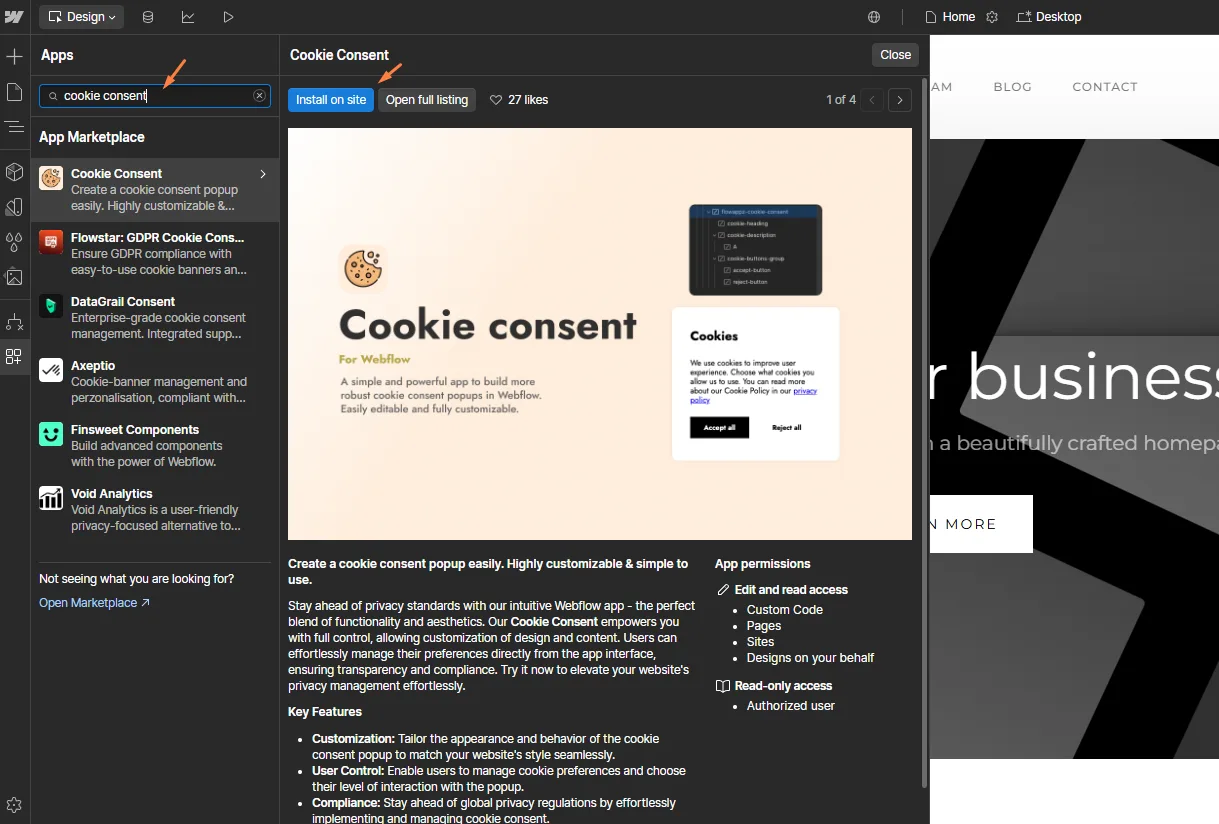
Open Applications in Webflow Designer:
- Click the Applications button in the Webflow Designer


-
Install the Application:
- Click Install on Site to add the Cookie Consent app to your site or workspace.
-
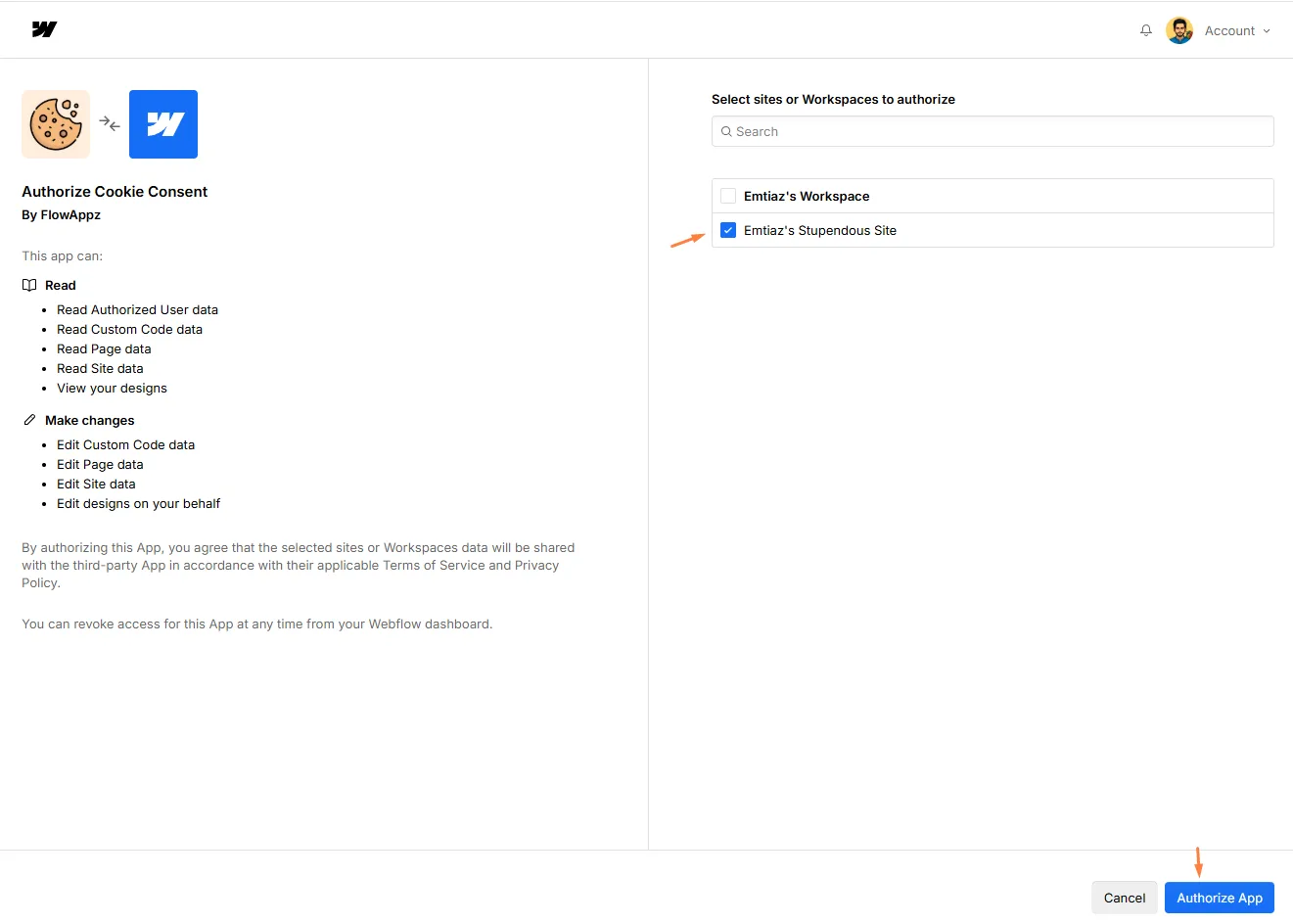
Choose Installation Scope:
- Install the application for your entire workspace or specific sites.
- Mark the sites for installation and click Authorize App.
-
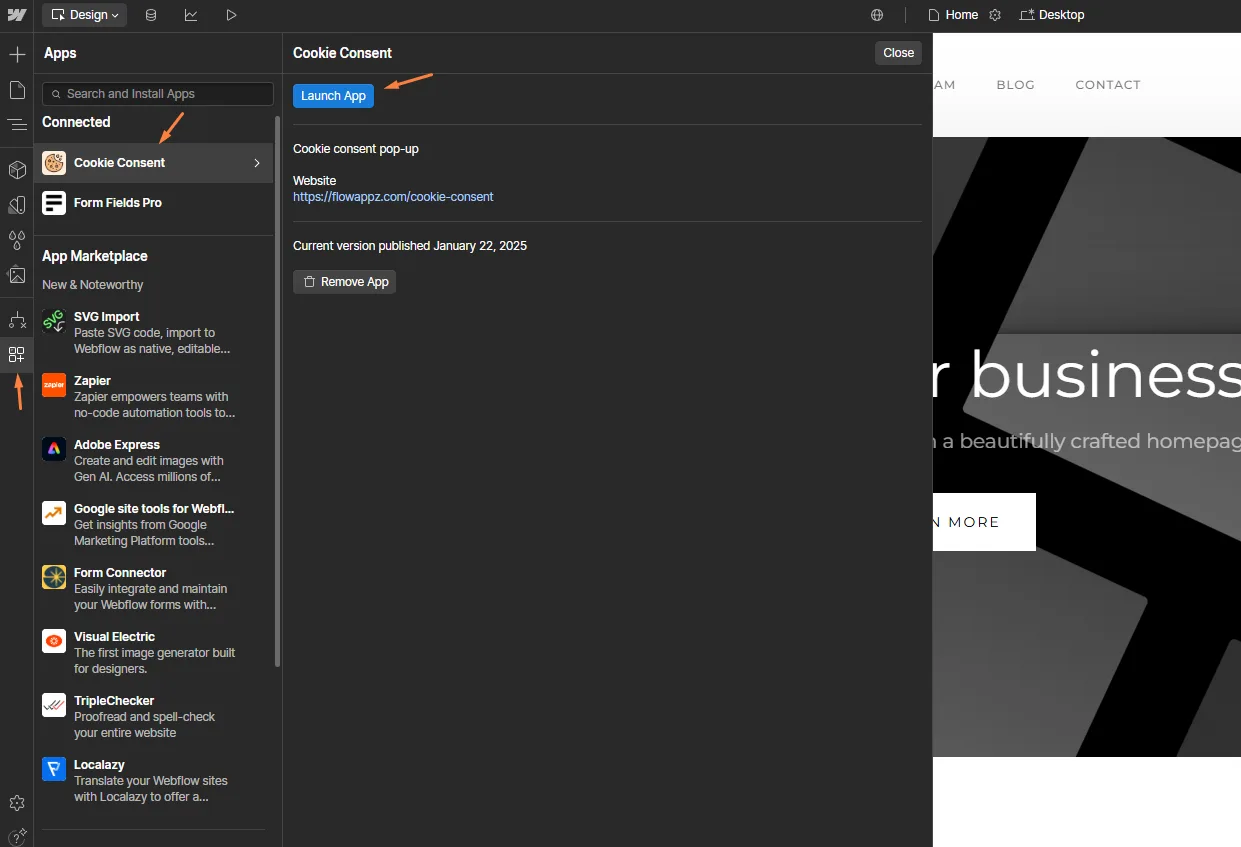
Verify Installation:
- Revisit the Applications section in Webflow Designer.
- Confirm that Cookie Consent appears as connected.
-
Launch the Application:
- Click Cookie Consent to open the app.

