








On this page
First, confirm what the element actually is
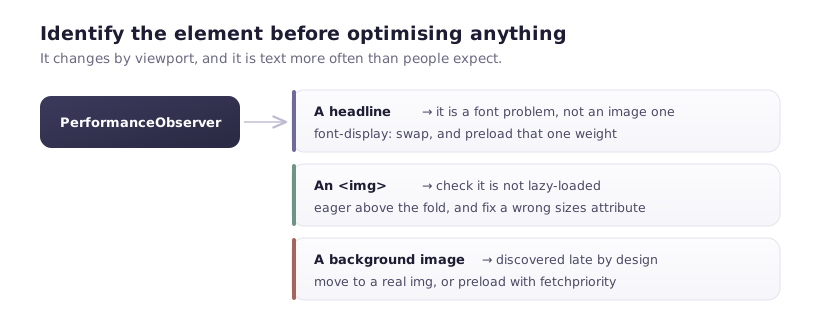
Every diagnosis below depends on knowing which element LCP is measuring. Guessing wastes days.
PageSpeed Insights names it under the LCP entry. Or measure it directly:
new PerformanceObserver(list => {
  const entry = list.getEntries().at(-1);
  console.log('LCP element:', entry.element);
  console.log('LCP time:', Math.round(entry.startTime), 'ms');
}).observe({ type: 'largest-contentful-paint', buffered: true });
Run that on a throttled connection, not on fibre. On a fast connection everything finishes so quickly that the ordering problems below never surface.
Two surprises are common. The LCP element is often text, not an image — a large headline in a hero counts. And it changes by viewport: on mobile the hero image might be hidden, making a paragraph the largest element.
1. It's text, and the font is the bottleneck
If LCP is a headline, image compression is irrelevant. The metric is waiting on the font.
By default a browser hides text until its font loads. That's invisible text sitting exactly where your LCP element should be.
Fix: font-display: swap so text paints immediately in a fallback, and preload the single weight used by that headline. This regularly takes a second off LCP on font-heavy designs and touches no images at all.
2. The image is lazy-loaded
The most common self-inflicted LCP problem. Someone applies lazy loading to every image site-wide — sensible advice, applied indiscriminately — and the hero is now deprioritised.
Lazy loading tells the browser "this isn't urgent". For the LCP element, it is the only urgent thing.
In Webflow, image loading is per element in Settings. Set the hero to Eager, everything below the fold to Lazy.
You can check quickly:
document.querySelectorAll('img').forEach(img => {
  const r = img.getBoundingClientRect();
  const aboveFold = r.top < window.innerHeight;
  if (aboveFold && img.loading === 'lazy') {
    console.warn('Lazy image above the fold:', img.currentSrc);
  }
});
3. It's a background image
CSS background images are discovered later than <img> elements. The browser must download and parse the CSS, build the render tree, decide the element is displayed, and only then request the image.
A hero built as a div with a background image is measurably slower than the same hero as an <img> — and it can't be preloaded from the markup, can't use srcset, and won't get Webflow's responsive variants.
Fix: use an actual image element with object-fit: cover and position it behind the content. If you can't restructure, preload it:
<link rel="preload" as="image" href="/images/hero.webp" fetchpriority="high">
4. Render-blocking resources delay the start
LCP can't happen before first paint, and first paint waits for render-blocking CSS and synchronous scripts in the head.
Check the waterfall: if your LCP image finishes downloading at 900ms but LCP reports 2.4s, the image isn't the problem — something is blocking the render.
Usual suspects on Webflow sites: a synchronous third-party script in the head (A/B testing tools are the classic, because they deliberately block to avoid flicker), an @import in custom CSS, which serialises downloads, and heavy custom code before </head>.
Move anything non-critical to before </body>, or add defer.
5. srcset is serving a larger file than needed
Webflow generates responsive variants and picks with srcset/sizes — but the sizes attribute is a hint about layout, and when it's wrong, the browser picks badly.
The default is often 100vw, meaning "this image spans the viewport". If your image actually occupies half the width on desktop, the browser downloads roughly four times the pixels it needs.
Check what was chosen:
const img = document.querySelector('.hero img');
console.log('chosen:', img.currentSrc);
console.log('rendered:', img.getBoundingClientRect().width, 'px');
console.log('intrinsic:', img.naturalWidth, 'px');
If intrinsic is much larger than rendered × device pixel ratio, you're over-downloading. Correcting sizes to describe the real layout fixes it.
6. Server response time
LCP includes time-to-first-byte. If TTFB is 800ms, you're spending a third of the budget before anything renders.
Webflow's hosting is generally fast, so a poor TTFB usually points at a redirect chain — http:// → https:// → www. costs a full round trip each — or a slow region without CDN coverage. Check with curl:
curl -o /dev/null -s -w "dns %{time_namelookup} connect %{time_connect} ttfb %{time_starttransfer} total %{time_total}\n" https://yoursite.com/
If time_starttransfer is high while time_connect is fine, the delay is server-side. If there are redirects, curl -IL shows the chain.
The order I'd work through
- Identify the element. Nothing else matters until you have.
- If it's text → font strategy.
- If it's an image → check it isn't lazy, isn't a background, and isn't oversized.
- Check the waterfall for render-blocking resources.
- Check TTFB and redirects.
Almost every "our images are optimised but LCP is bad" case resolves in steps 2 or 3.
Then wait, and don't panic
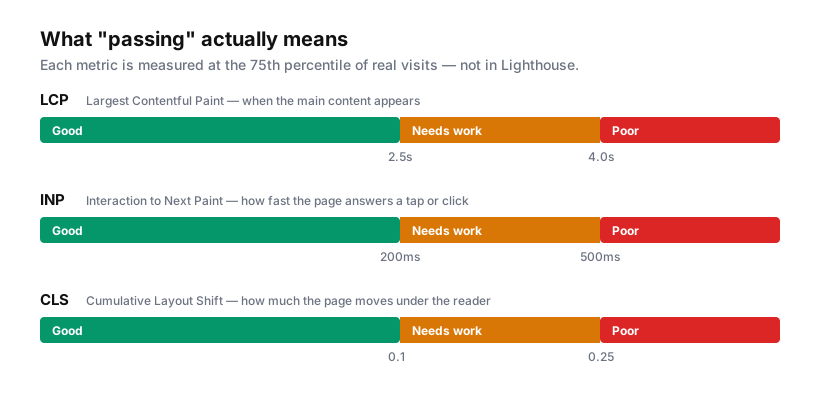
The number in Search Console comes from field data aggregated over 28 days. Ship a fix today and that report keeps showing the old figure for weeks while the window rolls forward.
Verify with lab tools that the change landed — the LCP element resolved earlier, the right file was served — then leave the field data alone for a month. The most common mistake after a genuine fix is concluding it didn't work four days later and undoing it.