









On this page
Most of what's written about this is now wrong
Webflow restructured its Site plans on 13 May 2026. The old Basic / CMS / Business ladder was consolidated: Premium replaced both CMS and Business, and a new Team plan arrived above it. If you're reading an article that talks about "the CMS plan's 2,000 item limit" — a genuinely correct statement before May — it's describing a plan that no longer exists.
At the time of writing, the self-serve picture is Starter (free), Basic, and Premium, with Team above them on an annual contract. Premium carries 20,000 CMS items and 40 Collections; Team raises Collections to 100 while the item ceiling stays at 20,000.
I'm going to be careful here and say something most posts on this topic won't: check Webflow's pricing page before you architect around any of these numbers. They moved in May 2026, they've moved before, and a blog post is a worse source than the vendor's own page for a figure that determines your data model. What follows is more useful than the specific numbers anyway — it's the shape of the constraints, which has been stable for years.
The limits that no plan upgrade will fix
Item and Collection ceilings scale with money. These don't. They're the same on a free site and an enterprise contract, and they're the ones that actually shape how you build.
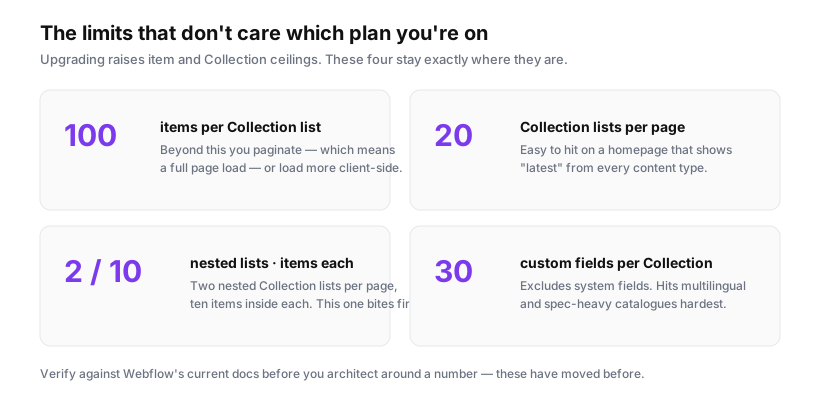
Taking them in order of how often they cause trouble:
Nested Collection lists: 2 per page, 10 items each. This is the one that ambushes people. You model a Course with nested Lessons, or a Category with nested Products, it works beautifully with your eight test items, and then a real category has thirty and the page silently shows ten. Not an error — just quietly incomplete, which is worse. The design that assumed nesting has to be rethought, usually late.
100 items per Collection list. A Collection list renders at most 100 items without pagination. For a blog this is invisible. For a 500-product catalogue on one page, it's a wall you hit on day one.
30 custom fields per Collection. Generous until it isn't. Multilingual content modelled as parallel fields (title_en, title_fr, title_de) burns through it fast, and so do spec-heavy product catalogues. When you hit it, the fix is splitting the Collection and joining with references — which costs Collection slots and adds query complexity.
20 Collection lists per page. Reachable on a homepage that shows "latest" from every content type, or a mega-menu built from Collections.
What actually happens when you hit an item cap
Worth knowing precisely, because the failure mode is gentler than people fear and more dangerous than they expect.
You cannot create new items or Collections. The site stays up. Publishing keeps working. Editors can still edit existing content. What stops is growth.
The dangerous part is automation. If items arrive through the API — a sync from a PIM, an integration creating case studies, a scheduled import — those writes start failing while the site looks completely healthy. Nobody watching the front end sees anything wrong. The source system reports success or silence depending on how it handles errors. You find out weeks later when someone asks why the last forty products never appeared.
If anything writes to your CMS programmatically, monitor item count as a number that can page someone. A weekly check against 80% of your ceiling costs nothing and turns a silent failure into a planned upgrade.
Designing around the 100-item wall
Three approaches, each with a real cost. Choosing between them is a genuine architectural decision, not a preference.
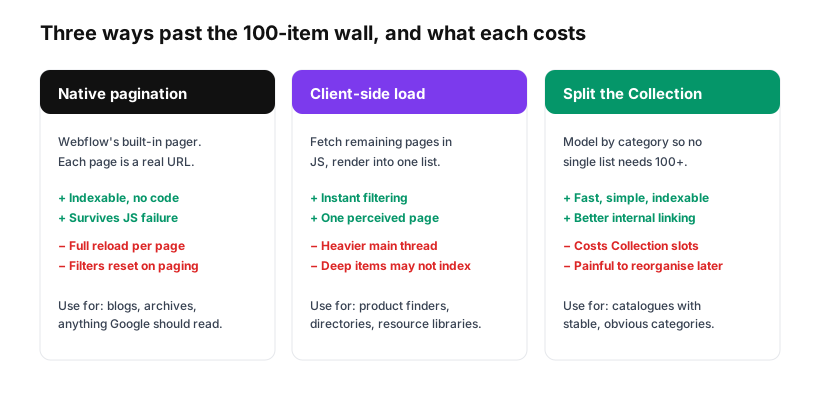
Native pagination is the default and the most under-rated. Each page is a real, crawlable URL. It works without JavaScript. It's the right answer for anything Google should read — blog archives, resource libraries, documentation. The cost is a full page load per page of results, and filters that reset when you paginate unless you carry state in the URL.
Client-side loading fetches the remaining items in JavaScript and renders them into a single list. This is what the Finsweet Attributes library is best known for, and it's what makes instant filtering and infinite scroll possible on Webflow. The costs are real: more main-thread work (which shows up in INP), a dependency on JS succeeding, and items beyond the first render may not be seen by crawlers. Use it where interaction matters more than indexing — product finders, directories, internal tools.
Splitting the Collection means modelling so that no single list ever needs 100+ items. A /products/cameras page backed by a Cameras Collection is fast, simple, and indexable. The costs are Collection slots and inflexibility — reorganising categories later means migrating items and rewriting URLs, with redirects for every one.
My honest bias: split first, paginate second, and reach for client-side loading only where the interaction genuinely requires it. Most "we need infinite scroll" requirements are a design preference, not a user need, and they trade indexability for smoothness on pages that exist to be found in search.
The reference field trap
Multi-reference fields are how you model many-to-many relationships — a Post with several Tags, a Product in several Categories. They're also where CMS designs quietly become slow.
Two things to know. First, a multi-reference field rendered in a Collection list is a nested list, so it inherits that 10-item cap: a post with fifteen tags displays ten. Second, references make bulk operations painful — CSV imports need the referenced items to exist first, matched by name or slug, which turns a one-step import into an ordered sequence. Import Categories, then Products, then anything referencing Products.
If you're importing thousands of items with references, do a dry run on a handful and verify the references resolved before running the full batch. Cleaning up a bad import at scale is significantly worse than the import itself — Webflow has no undo for a mass import, and deleting thousands of items through the Designer is a genuinely bad afternoon.
When Webflow's CMS is the wrong tool
Worth saying plainly, because "how do I get past the limit" is sometimes the wrong question.
Webflow's CMS is excellent for editorial content: marketing pages, blogs, case studies, team pages, resource libraries. Content that's authored, reviewed, and published by people.
It's a poor fit for:
- Machine-generated inventory at scale. Tens of thousands of frequently-changing SKUs synced from another system. You'll spend your life managing item counts and API rate limits.
- User-generated content. Anything visitors create belongs in a real database, not a CMS with a publishing workflow.
- Highly relational data. If your model needs joins across four Collections to render a page, you've outgrown it.
The honest alternative for those cases is to keep Webflow for the marketing site — where it's genuinely excellent — and serve the data-heavy section from something built for it, whether that's a headless setup or an application behind a subdomain. Fighting a CMS to do something it wasn't designed for costs more over two years than building the right thing once.
A checklist before you commit to a data model
Ten minutes here saves a rebuild:
- How many items will the largest Collection hold in three years? Not today — with growth.
- Will any list need to show more than 100 at once? If yes, decide now: paginate, load client-side, or split.
- Is anything nested? If yes, will it ever exceed 10 children? If it might, don't nest.
- How many fields does the biggest Collection need? If you're over 20, look again — you may be modelling two things as one.
- Does anything write via the API? If yes, set up item-count monitoring on day one.
- Do the URLs match the structure you want long-term? Changing Collection slugs later means redirects for every item.
None of this is exotic. It's the sort of thing that seems obvious in retrospect and gets skipped under deadline, and the cost lands six months later on someone who wasn't in the room.
The limits themselves aren't the problem. Every platform has them, and Webflow's are generous for the work it's built for. The problem is discovering them after you've modelled your content around an assumption that doesn't hold — which is entirely avoidable with one afternoon of arithmetic before the first Collection is created.
Sources: Webflow: dynamic content limits · Webflow: updated pricing and simplified plans, May 2026 · Webflow pricing


