








On this page
What we're building, and why not to reach for a library first
A grid of CMS items with category checkboxes down one side. Tick a box, the grid narrows instantly with no page reload. Untick everything, all items come back. The URL updates so a filtered view can be shared.
Finsweet Attributes does this well, and for most sites it's the right answer. But there are three cases where writing it yourself is genuinely better: you're already loading custom JavaScript and don't want another dependency; your filtering logic is unusual enough that you'd fight the library's assumptions; or you need to understand what's happening because you'll maintain it for years. Forty lines you wrote beats four hundred you didn't when something breaks on a Friday.
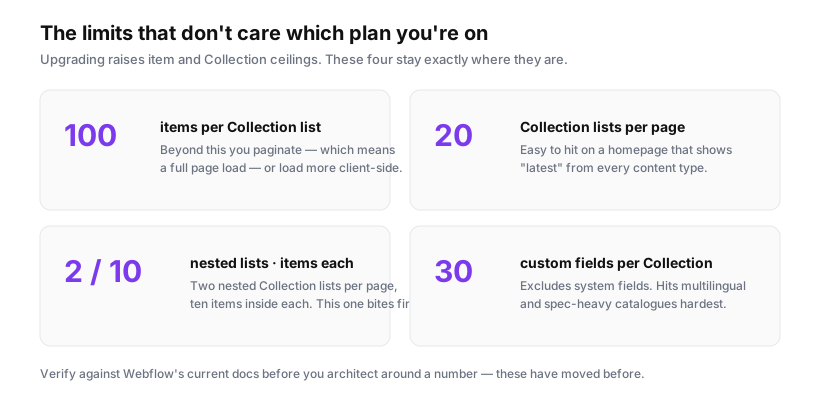
The constraint that shapes everything: a Collection list renders at most 100 items without pagination. Everything below assumes your filterable set fits inside that. If it doesn't, skip to the last section — client-side filtering of a partially-rendered list is the single most common way this goes wrong.
Structure in the Designer
Three pieces.
1. The Collection list. Bind it to your Collection. On the item wrapper, add a custom attribute carrying the categories that item belongs to. In the Designer: select the item, open Settings, add a custom attribute named data-categories, and set its value to the field you want to filter on. If you filter on a multi-reference field, you'll need a nested Collection list to output several values — more on that in a moment.
2. The filter controls. A Collection list bound to your Categories collection, each rendering a checkbox. The value comes from the category slug:
<label>
  <input type="checkbox" class="filter-checkbox" value="{{ category-slug }}">
  <span>{{ category-name }}</span>
</label>
In Webflow you'd add the value attribute as a custom attribute bound to the slug field.
3. An empty state. A div that reads something like "No items match those filters." Hidden by default. Skipping this is the most common omission, and an empty grid with no explanation reads as a broken page.
Getting the categories onto each item
This is the fiddly part, and it depends on your data model.
Single reference (each item has exactly one category) is simple — bind data-categories to the category's slug field directly.
Multi-reference (an item can be in several categories) can't be bound to one attribute, because Webflow has no way to render a joined list into an attribute value. The workaround is a nested Collection list inside each item, rendering the slugs into hidden elements:
<div class="item" data-categories="">
  <!-- nested collection list, visually hidden -->
  <div class="cats" style="display:none">
    <span class="cat">{{ category-slug }}</span>
  </div>
  <!-- ...card markup... -->
</div>
Then collect them on load:
document.querySelectorAll('.item').forEach(item => {
  const slugs = [...item.querySelectorAll('.cat')].map(el => el.textContent.trim());
  item.dataset.categories = slugs.join(' ');
});
Remember the nested-list ceiling here: a nested Collection list renders 10 items. An item in more than ten categories will silently lose the eleventh onward. That's rarely a real constraint for categories, but it is a hard one for tags, and it's worth knowing before you discover it in production.
The filtering script
(function () {
  const items = Array.from(document.querySelectorAll('.item'));
  const boxes = Array.from(document.querySelectorAll('.filter-checkbox'));
  const empty = document.querySelector('.empty-state');

  function selected() {
    return boxes.filter(b => b.checked).map(b => b.value);
  }

  function apply() {
    const active = selected();
    let visible = 0;

    items.forEach(item => {
      const cats = (item.dataset.categories || '').split(' ').filter(Boolean);
      // No filters selected means everything shows.
      const match = active.length === 0 || active.some(a => cats.includes(a));
      item.style.display = match ? '' : 'none';
      if (match) visible++;
    });

    if (empty) empty.style.display = visible === 0 ? 'block' : 'none';
    writeUrl(active);
  }

  function writeUrl(active) {
    const url = new URL(window.location);
    if (active.length) {
      url.searchParams.set('filter', active.join(','));
    } else {
      url.searchParams.delete('filter');
    }
    history.replaceState(null, '', url);
  }

  function readUrl() {
    const param = new URL(window.location).searchParams.get('filter');
    if (!param) return;
    const wanted = param.split(',');
    boxes.forEach(b => { b.checked = wanted.includes(b.value); });
  }

  boxes.forEach(b => b.addEventListener('change', apply));
  readUrl();
  apply();
})();
Paste it into a <script> embed before </body>, or in Page Settings under Before </body> tag.
Three decisions worth naming, because they're the ones you might want differently:
OR, not AND. active.some(...) shows an item matching any selected category. Switch to active.every(...) for AND behaviour. OR is right for most category filters — a visitor ticking "Design" and "Development" usually means "show me both", not "show me items that are somehow both".
display rather than removing nodes. Hiding keeps the DOM stable, so re-filtering is instant and nothing needs re-rendering. It also means all items stay in the HTML, which is good for crawlers and bad if you have hundreds of heavy cards.
replaceState, not pushState. Filter changes don't create back-button history entries. Ticking five boxes then pressing Back should return you to the previous page, not step back through five filter states. Use pushState only if you genuinely want each filter state in history.
Making it not feel broken
A few refinements that separate a demo from something you'd ship.
Show counts. People trust filters more when they can see how many items each yields:
boxes.forEach(box => {
  const count = items.filter(i =>
    (i.dataset.categories || '').split(' ').includes(box.value)
  ).length;
  const label = box.closest('label').querySelector('.count');
  if (label) label.textContent = count;
});
Add a clear-all control once more than about four filters exist. Unticking six boxes by hand is a chore.
Announce changes to screen readers. Visual users see the grid change; screen reader users get nothing unless you tell them. Put aria-live="polite" on a small status element and update it:
<p aria-live="polite" class="sr-status">Showing 12 of 40 items</p>
This costs one line and is the difference between an accessible filter and one that silently excludes people.
Keep the empty state useful. "No items match those filters" is fine. "No items match those filters — clear filters" with a working link is better.
Where this approach runs out
Be honest with yourself about the ceiling before you build on it.
Past 100 items, it breaks quietly. Your Collection list renders the first 100. Filtering hides some of those 100. A visitor filtering to "Design" sees only the Design items within the first hundred, with no indication anything is missing. Nothing errors. This is why "our filter is missing items" is such a common late-stage bug — the filter works perfectly on the data it was given, and the data was already truncated.
At that point your options are native pagination (filters reset per page unless you carry state in the URL), loading the remaining pages client-side before filtering (which is essentially what Finsweet's CMS Load does, and at that point use Finsweet), or splitting the Collection so no single list needs 100+.
Heavy cards make hiding expensive. If each item has a large image and several nested elements, a few hundred hidden nodes still cost layout and memory. Below ~100 items it's irrelevant; above that, measure.
Deep filtered views may not be indexed. Items hidden with display: none are in the HTML and crawlable, so this is usually fine. But ?filter=design URLs are not separate indexable pages — they're the same page with a query string. If you want category pages ranking in search, build real pages, don't rely on filter state.
The rule I'd apply: under 100 items and simple category logic, write the forty lines. Over 100 items, or filtering that needs to combine with search and sort, use a library built for it and spend your time elsewhere.