








On this page
Two kinds of animation
Some properties are cheap to animate because the browser can hand them to the GPU as a compositing operation. Others are expensive because changing them forces the browser to recalculate layout and repaint — on every single frame.
Cheap (compositor only): transform and opacity.
Expensive (forces layout): width, height, top, left, right, bottom, margin, padding, font-size.
In between (repaint, no layout): background-color, box-shadow, border-radius, filter.
A 60fps animation gives the browser 16.7ms per frame. Recalculating layout for a complex page can eat most of that on its own, before your JavaScript runs. That's the difference between a smooth slide-in and one that judders on a mid-range Android.
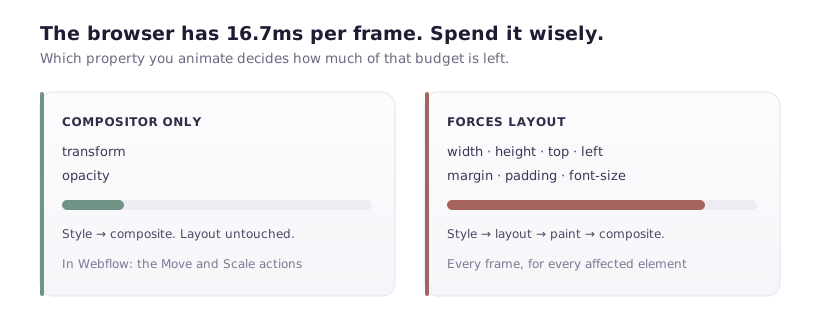
Practically, in Webflow's interaction panel: use Move rather than adjusting position, and Scale rather than adjusting size. Move and Scale compile to transform. Setting a width in pixels does not.
The same animation, two ways
Slide a card in from the left.
Expensive: animate left from -100px to 0. Every frame, the browser recalculates the position of that element — and potentially everything around it — then repaints.
Cheap: animate transform: translateX(-100px) to translateX(0). The element is rendered once and moved by the compositor. Layout is never recalculated.
Visually identical. On a fast laptop you won't see a difference; on a four-year-old phone one is smooth and the other isn't.
In Webflow: choose the Move action, not a Size or position change. It's a one-click difference at build time and the reason a site feels solid or cheap on real hardware.
Scroll animations: the expensive default
Scroll-triggered animation is where Webflow sites most often become janky, because a scroll handler runs on every scroll event — which can fire dozens of times per second — and anything reading layout inside it forces a synchronous recalculation.
The pattern to avoid, whether hand-written or generated:
// Bad: reads layout on every scroll event
window.addEventListener('scroll', () => {
  document.querySelectorAll('.card').forEach(card => {
    const rect = card.getBoundingClientRect();   // forces layout
    if (rect.top < window.innerHeight) card.classList.add('visible');
  });
});
With thirty cards, that's thirty forced layout calculations per scroll event.
The replacement is IntersectionObserver, which the browser evaluates off the main thread and reports asynchronously:
const observer = new IntersectionObserver(entries => {
  entries.forEach(entry => {
    if (entry.isIntersecting) {
      entry.target.classList.add('visible');
      observer.unobserve(entry.target);   // fire once, then stop watching
    }
  });
}, { rootMargin: '0px 0px -10% 0px' });

document.querySelectorAll('.card').forEach(el => observer.observe(el));
.card { opacity: 0; transform: translateY(20px); transition: opacity .5s, transform .5s; }
.card.visible { opacity: 1; transform: none; }
Two details that matter as much as the observer: unobserve after firing, so you're not tracking elements that have already animated; and doing the animation in CSS, so the browser owns the frames rather than JavaScript driving them.
Webflow's own scroll interactions are reasonably built, but the number of them is yours to control. Twenty elements each with their own scroll-linked animation is expensive regardless of how well each one is implemented.
Scroll-linked versus scroll-triggered
Worth separating, because the cost is very different.
Scroll-triggered — something starts when an element enters view, then plays independently. Cheap. IntersectionObserver plus a CSS transition.
Scroll-linked — animation progress is tied to scroll position, so the element moves as you scroll. Expensive, because something must run on every scroll frame to keep them in sync.
Parallax is scroll-linked. So is a progress bar tracking reading position, and any "scrub through the animation as you scroll" effect. These are the effects that make phones stutter.
If you need one, keep it to a single element, animate only transform, and read scroll position outside the layout-reading path:
let ticking = false;

window.addEventListener('scroll', () => {
  if (ticking) return;
  ticking = true;

  requestAnimationFrame(() => {
    // window.scrollY doesn't force layout; getBoundingClientRect() would.
    hero.style.transform = `translateY(${window.scrollY * 0.3}px)`;
    ticking = false;
  });
}, { passive: true });
{ passive: true } tells the browser the handler won't call preventDefault(), so scrolling isn't blocked waiting for it. On touch devices this alone is the difference between smooth and sticky.
will-change, used sparingly
will-change: transform promotes an element to its own compositor layer ahead of time, avoiding a hitch at animation start.
It's also frequently misused. Each promoted layer consumes memory, and applying it broadly — .card { will-change: transform; } across forty cards — can degrade performance rather than improve it, particularly on memory-constrained phones.
Apply it to the handful of elements that animate continuously, and remove it when the animation ends:
el.style.willChange = 'transform';
el.addEventListener('transitionend', () => { el.style.willChange = 'auto'; }, { once: true });
If you're unsure, leave it off. Modern browsers handle transform animations well without hints.
Respect reduced motion
Some people get motion sickness from parallax and large movement. The operating system exposes their preference; honouring it is one media query:
@media (prefers-reduced-motion: reduce) {
  *,
  *::before,
  *::after {
    animation-duration: 0.01ms !important;
    animation-iteration-count: 1 !important;
    transition-duration: 0.01ms !important;
    scroll-behavior: auto !important;
  }
}
Add it to Site Settings → Custom Code. It costs nothing, and for the people who need it the difference is not cosmetic.
For JavaScript-driven effects, check the same preference before starting:
const still = window.matchMedia('(prefers-reduced-motion: reduce)').matches;
if (!still) startParallax();
A short checklist
- Animate
transformandopacity. Treat anything else as a decision, not a default. - In Webflow, prefer Move and Scale over position and size changes.
IntersectionObserverfor entrance animations;unobserveafter firing.- At most one scroll-linked effect per page, and only on
transform. { passive: true }on every scroll listener.will-changeon the few elements that need it, removed afterwards.- Honour
prefers-reduced-motion.
Then test on a real mid-range Android, or throttle the CPU 4× in DevTools. Every animation is smooth on the machine it was built on, which is exactly why so many sites ship animations that aren't.