








On this page
"The banner shows up" is not verification. It tells you the UI rendered. It says nothing about whether declining actually prevented anything, which is the part a regulator would care about and the part that is usually broken.
Proper verification answers three questions per tool:
- Before any choice, does it stay silent?
- After granting, does it start?
- After declining, does it stay silent — and stay silent on the next page?
Here is how to answer those for the tools most Webflow sites run.
Set up a clean test
Every check below assumes no stored decision. Open a private window, or use DevTools → Application → Storage → Clear site data, and test on your real domain rather than a .webflow.io staging address.
Keep the Network tab open from before the page loads. Requests that fire during initial parse are exactly the ones you are hunting, and they are gone from the list if you open DevTools afterwards.
Google Analytics 4
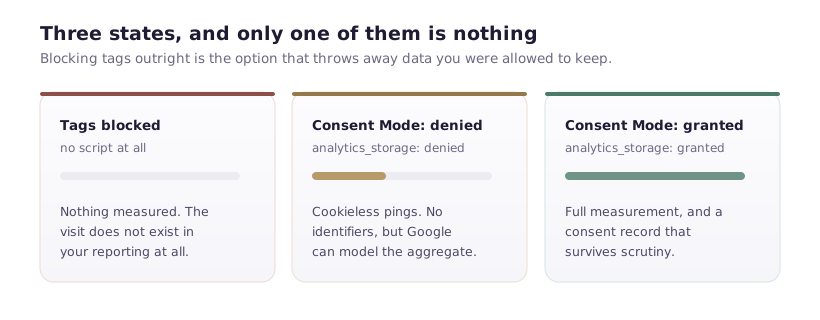
Network check. Filter for google-analytics.com and googletagmanager.com. Before consent, both should be empty — with one legitimate exception: if you run Consent Mode, GTM itself may load while sending denied signals, which is correct behaviour.
Realtime check. The more convincing test. Open Google Analytics → Reports → Realtime in one window and your site in a private window in another. Decline cookies, browse two or three pages, and watch. If your visit appears in Realtime after declining, consent is not being respected.
Extension check. Google Tag Assistant or the Google Analytics Debugger extension will tell you whether the tag fired and with what parameters. Useful when you need to know why, not just whether.
Meta Pixel
Install the Meta Pixel Helper Chrome extension. It sits in the toolbar and reports which pixels fired on the current page and which events they sent.
The test: load the site fresh, decline, then perform something that would normally trigger an event — a page view is enough, a form submission is better. The helper should report nothing. Grant consent and repeat; it should now report the pixel and the event.
Pixel Helper is more reliable than a network filter here, because Meta's requests come from several domains and are easy to miss by eye.
TikTok Pixel
Same shape as Meta. Filter the network tab for analytics.tiktok.com, and confirm silence before consent. TikTok's pixel is frequently added late in a campaign by someone who is not the person who built the site, which makes it a common source of quiet non-compliance months after launch.
Chat widgets
Chat tools are the most-missed category, because nobody thinks of a support widget as tracking. Most set cookies and many load analytics of their own.
The check is visual rather than technical: decline cookies and reload. If the chat box still appears, it is running, and whatever it sets is being set without permission. Under a properly gated setup, the widget should only appear after the relevant category is granted.
This is worth taking seriously — a chat widget is often the single largest cookie-setter on a marketing site.
Google Tag Manager
If your tags live in GTM, verification moves into GTM's own Preview mode, which is more informative than any external tool.
Enter Preview, connect to your site, and watch the tag list as you interact with the banner. Tags gated correctly appear under Tags Not Fired with the consent condition shown as the reason. That is the clearest possible confirmation, because it names the rule that blocked it.
The check people skip
Consent must persist across navigation. A setup that blocks correctly on the landing page and forgets by the second page is worse than useless, because it looks compliant in testing.
After declining, browse at least three pages, including one reached through a Webflow interaction or client-side transition rather than a hard link. Re-run your network filters on the third page. This catches initialisation-order bugs that a single-page test cannot.
Keep the evidence
If your site is subject to GDPR, being able to demonstrate compliance matters as much as achieving it. Screenshots of the Network tab before and after consent, dated, stored with the project, cost nothing at the time and are extremely difficult to reconstruct a year later during an audit.
Agencies: make this part of handover. It protects you as much as the client.